
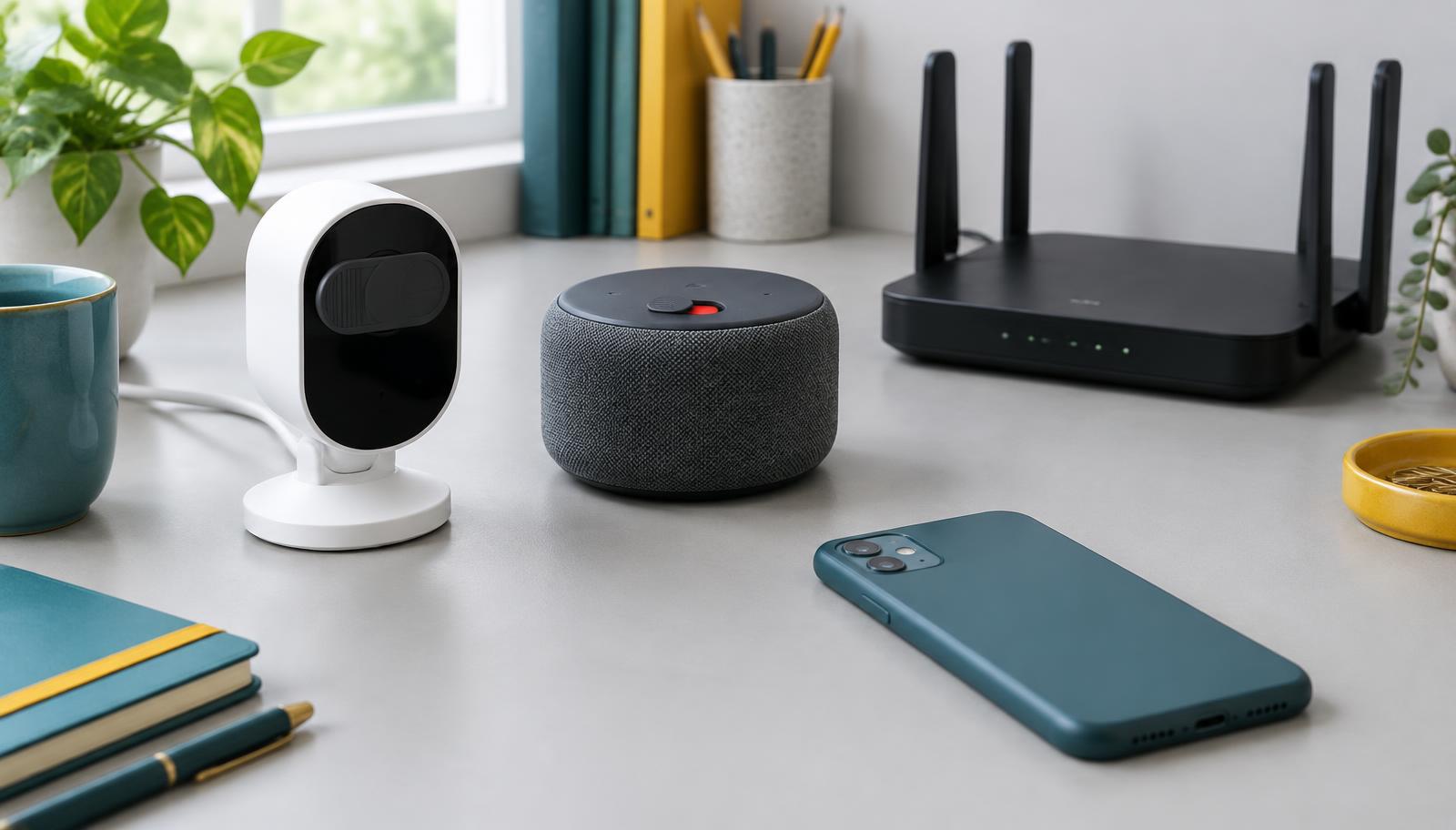
A smart doorbell can tell you who arrived while you were out. A watch can help you spot a change in your activity. A speaker can turn off the lights without making you reach for your phone. The privacy problem is not that these features are useless. It is that a useful feature can leave behind more information than you expected: a recording, a location history, a household routine or an account shared with someone who no longer needs access.
You do not have to choose between an entirely disconnected home and accepting every default. The practical question is narrower: what information does this device need to do the job you bought it for, where does that information go, and how long does it stay there? This guide draws on official consumer guidance and platform documentation, rather than hands-on testing of every model. Menu names and available controls vary by product, subscription and software version.
Privacy and security are related, but they are not the same
Security is about keeping unauthorized people out. Privacy also asks what authorized people and companies can do with your information. A camera account protected by a strong password may still store months of household footage. A securely connected television may still have an optional viewing-data feature enabled. You need to address both the lock on the door and what happens inside the room.
Think of the data path as four separate places: the device itself, the app on your phone, your home network and the company's online service. Turning off a phone permission does not necessarily stop a speaker from recording. Resetting a camera does not necessarily delete videos already stored online. A useful privacy check follows the information through each place instead of assuming one switch covers everything.
Start with the highest-impact changes
If you only have time for a first pass, begin with indoor cameras, microphones, location-tracking devices and the accounts that control them. Open each app's privacy and security sections. Review recording history, turn off collection you do not need, set a shorter retention period where offered, and remove people or linked services you no longer use.
Next, change reused passwords and enable multifactor authentication. Update the router and the devices. Finally, decide whether an always-connected device belongs in that room at all. Moving a camera out of a bedroom can reduce exposure more directly than fine-tuning several obscure settings. These are priorities, not a guarantee of complete protection.
1. Make a small inventory of your connected home
Write down your cameras, speakers, televisions, watches, locks, thermostats, printers and connected appliances. Include devices you rarely touch: a doorbell, a robot vacuum or an old tablet used as a home controller. The FTC recommends checking the router's connected-device list, sometimes called wireless clients or DHCP clients, to help identify what is on your network.
For each device, record who owns the account, whether it has a microphone or camera, whether it uses cloud storage and whether it still receives updates. Investigate an unfamiliar entry rather than assuming it is an intruder; network names can be cryptic. Turn off and remove equipment you no longer need, after checking that it is not supporting something important such as an alarm or accessibility routine.
2. Protect the accounts that can see or control your devices
Use a different password for each smart-home service and a password manager to keep track of them. The FTC warns that criminals can reuse credentials stolen in one breach to try other accounts. Enable multifactor authentication wherever available. Protect the email account used for password resets as carefully as the camera account itself.
Check signed-in sessions, recovery details and household members. Remove old phones, former roommates and unused integrations. Where the product supports separate invitations, use them instead of sharing the owner's password; give each person only the access they need. A relative who checks on your dog may need a temporary view, not permanent control of your recordings and settings.
Keep recovery codes somewhere secure and accessible to you. Before changing access to a shared lock or alarm, plan how everyone who legitimately depends on it will still get in. Privacy changes should not accidentally lock out a caregiver or disable a safety function.
3. Turn off unnecessary collection, not just unwanted notifications
A notification setting controls what the app tells you. A collection setting controls what it saves or uses. Look separately for activity history, advertising personalization, analytics, product-improvement sharing and recording retention. Read the explanation for each option: labels such as 'personalization' can cover different uses on different products.
On your phone, review each companion app's access to location, contacts, photos, microphone and camera. If the app works with location allowed only while you use it, prefer that over continuous access. Use approximate location when precise location is unnecessary and the option is available. Some permissions, including Bluetooth or local-network access, may be needed for setup or nearby control; deny unnecessary access, then test the feature you actually use.
For a smart TV, look for settings concerning viewing information or automatic content recognition, sometimes abbreviated ACR. Disable optional viewing-data collection if you do not want it. Separately review the streaming apps you use: changing a television setting does not erase the viewing history held by a streaming service. For wearables, check which apps and people can receive activity, health or location data, rather than assuming the phone's general settings cover every connection.
4. Treat voice recordings and transcripts as separate records
Review your assistant's history before changing settings. It can reveal what kinds of interactions were saved and whether an unintended activation created a record. Use the microphone-off control when you do not need voice input, following the manufacturer's explanation of what that control does. For particularly sensitive conversations, removing or unplugging a nonessential speaker is a simpler boundary than relying on a wake word.
In the Alexa app, Amazon documents a path through More, Alexa Privacy and Review Voice History to review and delete chats. Its automatic-deletion documentation distinguishes recordings from transcripts: choosing 'Don't save' removes voice recordings and stops future recording storage, while certain chat transcripts and typed requests can remain until they have been inactive for 30 days. Read the current wording in your own account; 'do not save audio' is not the same as 'retain no conversation data.'
For Google Assistant, Google's documentation says turning off 'Include voice and audio activity' stops that setting from saving future audio to the account, but does not delete audio already saved. Other settings may save recordings elsewhere. Review My Activity and the relevant product's controls, delete old records separately, and check whether text interactions remain. Newer assistant products may have different policies; do not assume one Assistant setting controls every AI conversation.
Voice recognition is useful for personalization, but it should not be treated as a substitute for account security. Be especially careful with spoken calendar entries, messages and purchases on a device used by an entire household. Check whether personal results are needed in that shared room at all.
5. Give cameras a stricter privacy standard
Start with placement. Point a doorbell toward the area you need to monitor, not a neighbor's window. Avoid indoor coverage of bedrooms, bathrooms and other intimate spaces. Tell household members, guests and caregivers what is being recorded. Audio recording and surveillance rules vary across US states and circumstances; check the applicable rules before recording conversations or monitoring workers.
Consider whether you need continuous recording, event recording or only a live view. If audio is unnecessary, disable it where supported. Choose the shortest useful history and review access to both livestreams and saved clips. The FTC recommends checking encryption, applying updates, using unique passwords and securely managing shared access to camera feeds.
Ask what 'encrypted' means. Encryption during transmission helps protect the connection; it does not by itself tell you whether the provider can read stored footage. End-to-end encryption is a different claim. Apple says HomeKit Secure Video recordings are analyzed using a home hub and are end-to-end encrypted in iCloud. That is a documented example, not a universal feature of every camera that works with Apple's Home app; check camera compatibility, subscription requirements and recording settings.
Local storage can reduce reliance on cloud video retention, but a camera with an SD card may still contact a vendor service. Check whether remote viewing and account features use the cloud. Protect the recorder and memory card against theft, keep the software updated, and understand which features stop working without internet access. Neither 'local' nor 'encrypted' removes the risk of someone with legitimate account or device access misusing recordings.
6. Secure the router, then consider a separate network
The FTC recommends WPA3 Personal or WPA2 Personal Wi-Fi encryption, a strong router password and current router software. The password for administering the router is separate from the password for joining Wi-Fi; protect both. Avoid outdated WEP or original WPA security. If a router cannot support modern encryption after updating, consider replacing it.
A guest or dedicated IoT network can limit access between connected gadgets and your main computers, if the router actually isolates those networks. Check its isolation settings and documentation. A second network name alone is not proof of separation. The FTC specifically suggests considering a separate network for cameras.
Test before moving everything. Casting, device discovery and local home controllers can stop working when they cannot reach each other. Move one noncritical device first and check setup, daily control and updates. More advanced segmentation is an option, not a requirement for every household. Do not sacrifice a reliable safety or accessibility feature without understanding the trade-off.
Network separation limits some paths an intruder could use; it does not stop a device from sending data to its own provider. A VPN is not a replacement for collection settings either: a service still receives information you deliberately send to it. Network controls and privacy controls solve different problems.
7. Buy for long-term control, not just a feature list
Before buying, look for a clear software-support period, a usable deletion process, recording controls and documentation about what functions work without the cloud. Check whether useful privacy features require a subscription. A bargain camera becomes a poor bargain if it cannot receive security fixes or its essential service disappears.
The FCC's voluntary U.S. Cyber Trust Mark program is intended to help consumers evaluate eligible connected products through a label and associated product information. If a product carries the mark, inspect the linked information rather than treating the logo as a promise of zero data collection. It is a cybersecurity program, not a blanket guarantee that a product's business model matches your privacy preferences. An unlabeled product is not automatically unsafe.
For an existing device, find the manufacturer's support information and ask whether updates are still provided. If support has ended, consider replacing or disconnecting it, particularly if it handles cameras, locks or other sensitive functions. Test any offline alternative; some devices lose more functionality than the box suggests.
8. Reset the device and deal with the cloud copy
Before selling, donating or recycling a device, save anything you need and follow its official transfer or reset instructions. Remove it from the relevant household and linked services, revoke old access, and erase local data. For phones and watches, check activation-lock, cellular-plan and payment-card instructions as well. The correct order varies by manufacturer.
Remove storage cards and SIM cards where applicable. A factory reset is meant to return the hardware to its initial state, but do not assume it deletes the provider's online recordings or account history. Delete those records separately, cancel subscriptions you no longer need, and verify whether you want to close the entire account or only remove one device.
Deleting an app is not the same as deleting an account. Keep any deletion confirmation and read the provider's explanation of data retained for legal, fraud-prevention or other purposes. This is also worth doing when a household changes: a device can stay in the same room while the list of people entitled to control it changes completely.
A worked example: keeping a doorbell without keeping everything
Imagine a household that wants delivery alerts and a short record of visitors. A sensible setup could keep event recording, disable unnecessary audio, limit the camera's field of view, shorten saved history and grant access only to current residents. The owner uses a unique password and multifactor authentication, keeps the camera updated and checks whether a separate network works with the app.
The household still gets the feature it wanted. It has not made the camera private in an absolute sense: the service may still process event information, clips may be downloaded by authorized users, and a recording can capture someone who never opened the app. The improvement is specific and measurable in everyday terms — less footage, fewer viewers and fewer unnecessary features enabled.
What these changes cannot promise
No checklist can prove that every device and provider behaves exactly as advertised. Product documentation describes intended behavior, not an independent audit of every implementation. Data already shared, exported or retained under a provider's policy may not disappear when you change a setting. An account compromise can also defeat protections that depend on that account.
Revisit the settings after a major software change, a new household member or a device replacement. The goal is not to spend your life policing gadgets. It is to establish a few durable boundaries: collect only what serves a real purpose, keep it for only as long as you need it, restrict who can see it, and know how to leave the service when you are done.